How to generate UPC barcode?


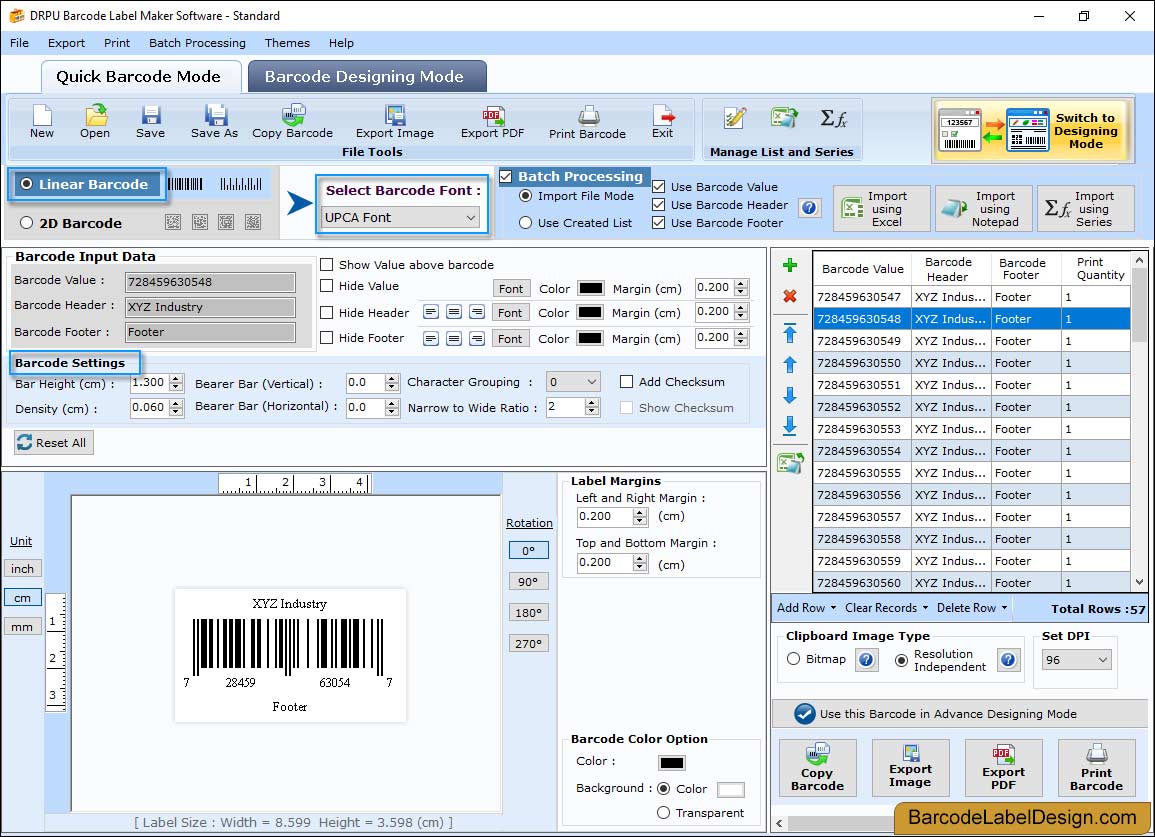
Step-1: Select the Linear Barcode font option as shown in the figure above:
Then Select Barcode Font Type "UPCA Font".There are Four Types of Barcode Settings
- General Settings
- Font Settings
- Color Settings
- Image Settings
General Settings
General Settings tab includes options as shown above-
Bearer Bar (Vertical) – Set the Vertical Bearer Bar value.
Bearer Bar (Horizontal) – Set the Horizontal Bearer Bar value.
Narrow to Wide Ratio – Set the Narrow to Wide Ratio value.
Character Grouping – Set the Character Grouping value.
Left and Right Margin (cm) – Set the Left and Right Margin.
Top and Bottom Margin (cm) – Set the Top and Bottom Margin.
Value Margin (cm) – Set the Value Margin.
Header Margin (cm) – Set the Header Margin.
Footer Margin (cm) – Set the Footer Margin.
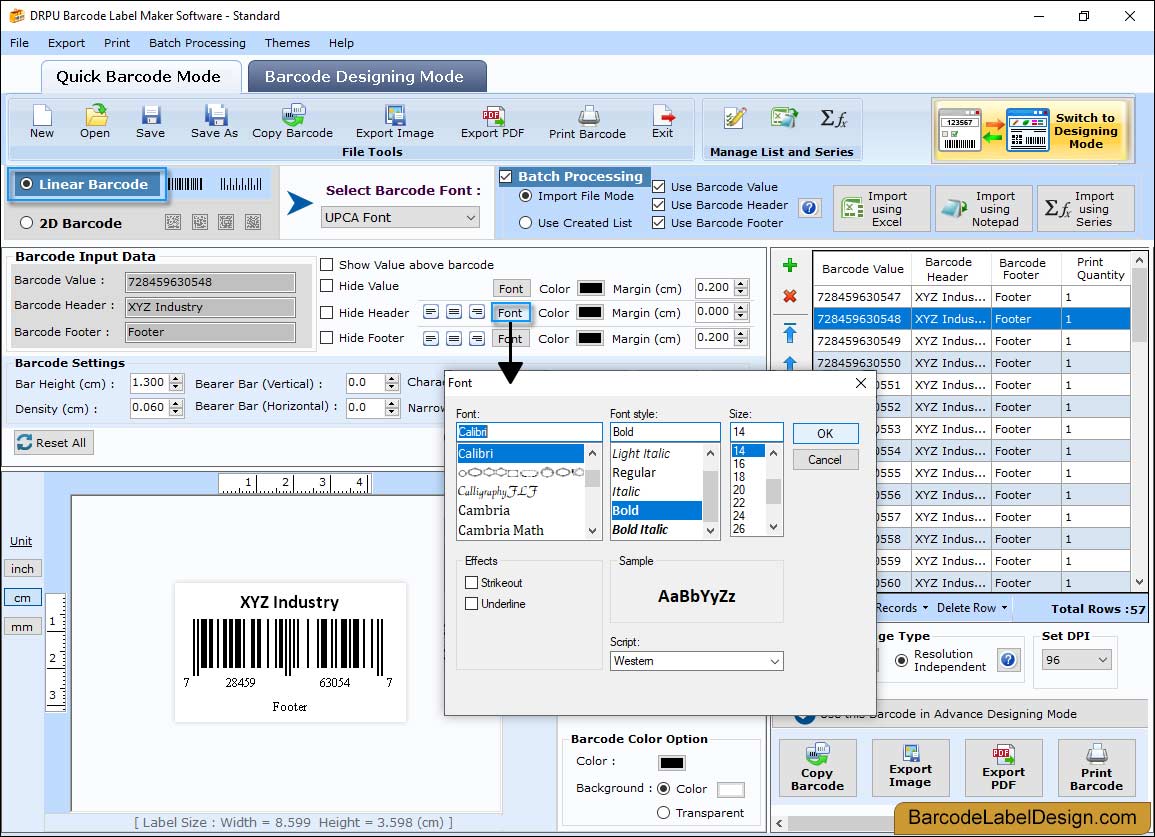
Step-2: Font Settings:
Font Settings tab includes options as shown above-
Barcode Value Font: Select the Barcode Value Font.
Barcode Header Font: Select the Barcode Header Font.
Barcode Footer Font: Select the Barcode Footer Font.
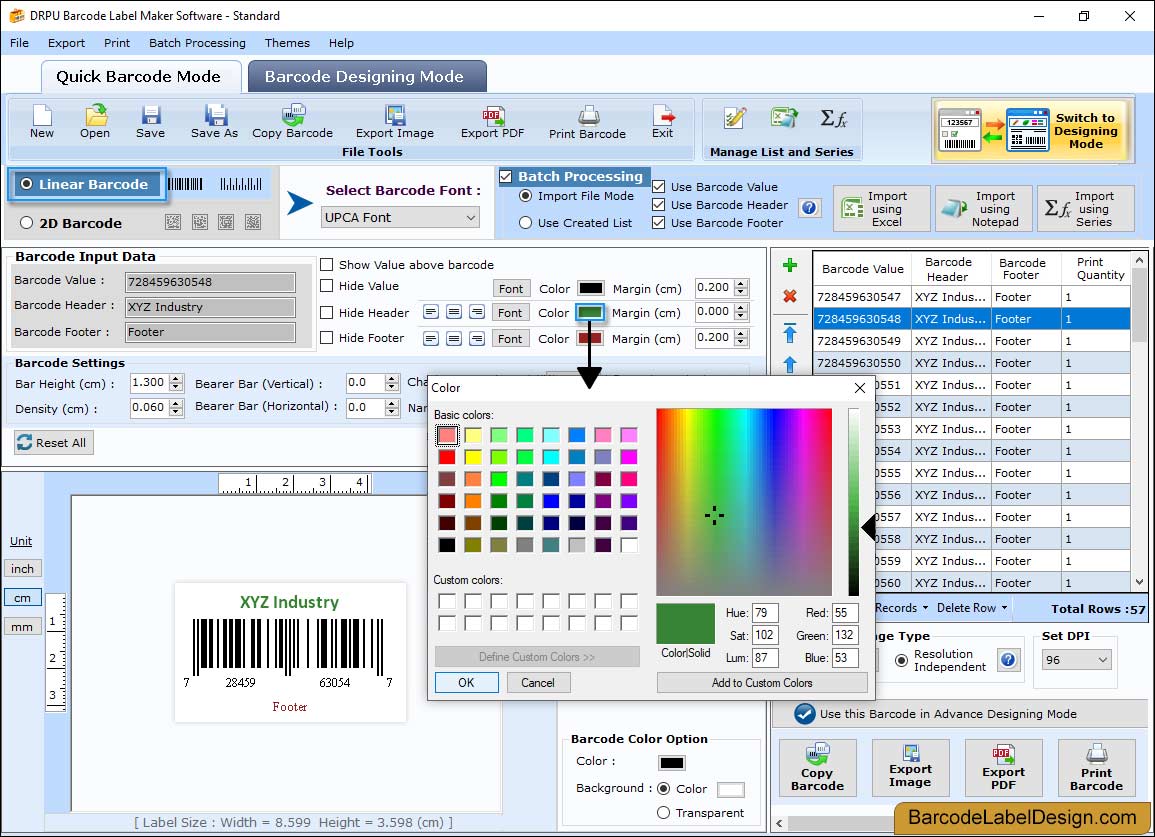
Step-3: Color Settings:
Color Settings tab includes options as shown above-
Barcode Color: Select the Barcode Bar Color.
Barcode Background Color: Select the Barcode Background Color.
Barcode Header Color: Select the Barcode Header Color.
Barcode Footer Color: Select the Barcode Footer Color.
Barcode Value Color: Select the Barcode Value Color.
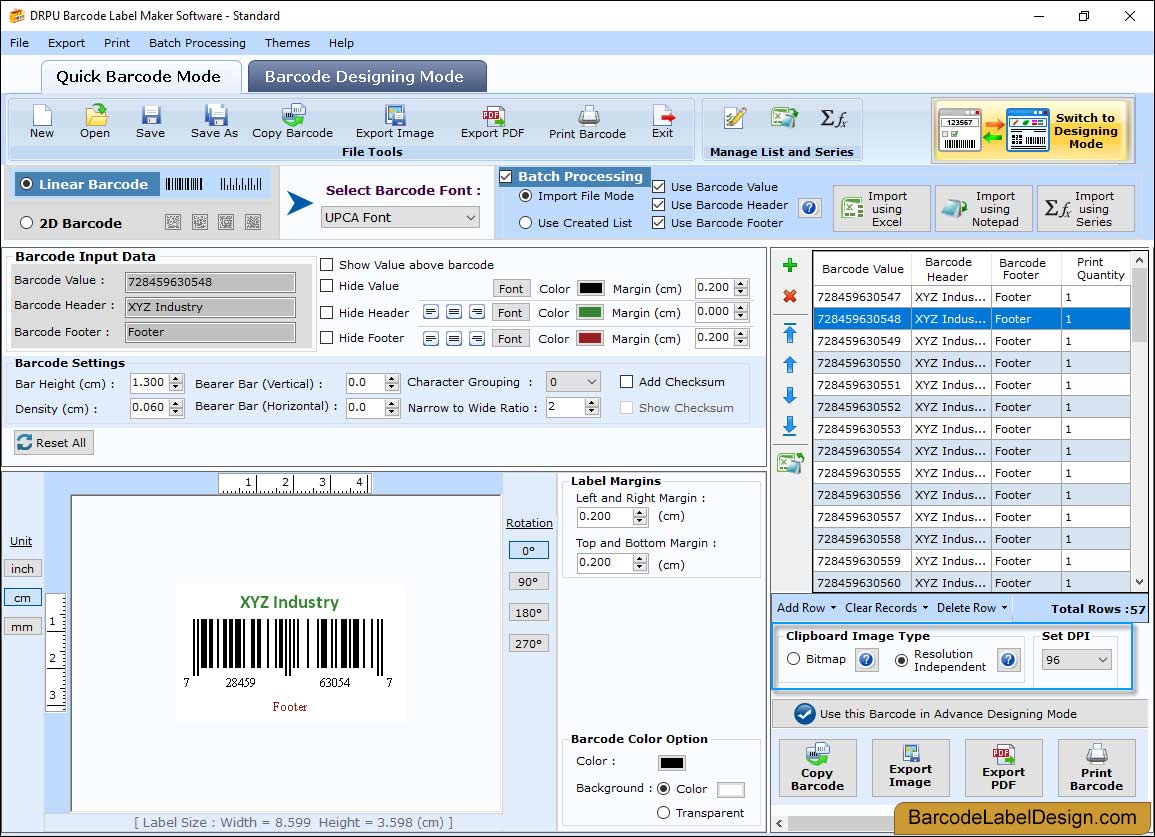
Step-4: Image Settings:
Image Settings tab includes options as shown above-
Select Clipboard Image Type:
Bitmap: Bitmap (Bitmap is the type of image format used to store digital images)
Resolution Independent Metafile: (Resolution Independent Metafile is a high resolution image file format to save the barcode label)
Image DPI: Enter the Image DPI (Dots Per Inch) value while you copy or save barcode image.
Orientation: Rotate the barcode image in 0, 90, 180, 270 degrees.
Note: Image DPI value changes are only applicable when Image Type “Bitmap” is selected.
Save Barcode: Click "Save Barcode" button to save the generated barcode label.
Copy Barcode: Click "Copy Barcode" button to copy the generated barcode label. You can paste the copied barcode in MS-Word, MS-Excel, MS-Paint etc.
Print: Click "Print" button to print the generated barcode label